Importing still images

Importing still images from your camcorder via the USB cable
You can import the still images stored on a “Memory Stick Duo” by connecting your camcorder and a computer.
-
Connect your camcorder to a power source, then slide the POWER switch repeatedly to select the PLAY/EDIT mode.
Use the AC Adaptor as the power source.
For operating the POWER switch, refer to the Operating Guide supplied with your camcorder. -
Connect your camcorder and a computer using the USB cable.
The [USB SELECT] screen is displayed on the LCD screen of your camcorder.
-
Touch [
 MemoryStick] on the LCD screen of your camcorder.
The window used to select the drive/folder for the still images to be imported from/to is displayed.
MemoryStick] on the LCD screen of your camcorder.
The window used to select the drive/folder for the still images to be imported from/to is displayed.
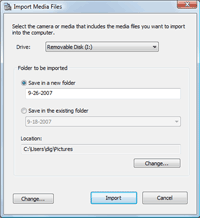
- Select the drive for the still images to be imported from.
- Select the folder for the still images to be imported to.
-
Click [Import].
The import of selected still images to the selected folder starts.
 Hint
Hint
- If the [Import Media Files] window is not displayed in step 3, click [Start] - [All Programs] - [Sony Picture Utility] - [Import Media Files]- [Digital Still Camera/Memory Stick (DCF Format)].
Changing the settings for importing still images
By clicking [Change] in the [Import Media Files] window, you can change the following settings for importing [Digital Still Camera/Memory Stick (DCF Format)] images in the displayed window.
| [Import settings] | Setting up image import. If you do not want to import images that have already been imported, select the [Do not import duplicates] check box. If you want to delete the images from your media after importing them into the computer, select the [Delete media files from media after they are imported to a computer] check box.
|
| [Media detection settings (available when media checking is enabled)] | Set the image import method for when media is connected to the computer. If you want the import images confirmation dialog box to be displayed when you connect media to the computer, click the [Show import confirmation dialog box] radio button. If you want images to be imported automatically, click the [Start importing media files without confirmation] radio button. |
 Note
Note|
Copyright 2008 Sony Corporation
|
P0177-01-US
|