Editing videos

Capturing still images from a video
Click [Save Frame] in the Video Trimming window to save the current frame as a still image. The file of the still image is saved in the same folder as the original video.
For details on the basic operations of editing videos, refer to the “Picture Motion Browser Guide” supplied with the software (“Picture Motion Browser Guide”).
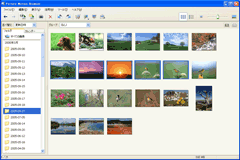
- In the main window, select the video from which you want to capture still images.
The selected videos are marked with a blue frame.
- Click
 at the top of the window, and select [Video Trimming].
Or, select [Video Trimming] in the [Manipulate] menu.
at the top of the window, and select [Video Trimming].
Or, select [Video Trimming] in the [Manipulate] menu.
The [Video Trimming] window is displayed.

- Click [Save Frame] to save the current frame as a still image.
The [Save Picture] window is displayed.
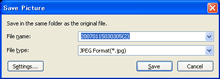
- Click [Save].
 Hint
Hint- The captured image is saved in the [My Pictures] folder in the default settings.
Hint
- By clicking [Settings] on the window displayed after you click [Save Frame], you can adjust the settings for noise reduction and color correction.
|
Copyright 2007 Sony Corporation
|
P0061-01-US
|