Changing the Working Environment

Changing the color management settings
You can set the working and monitor color spaces.
- Click [Settings] from the [Tools]
menu.
The [Settings] window is displayed.
- Click [Color Management].
The [Color Management] window is displayed.
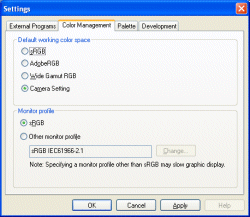
Default working color space Select the default working color space from [sRGB], [AdobeRGB], [Wide Gamut RGB], or [Camera Setting] (the color space used when the image is taken). Monitor profile
(For Windows)/Display profile (For Macintosh)Select the monitor color profile from [sRGB] or [Other monitor profile]. When you select [Other monitor profile], click [Change] to display the dialog box used to select a profile. Select the desired profile so that the selected profile is displayed in the [Other monitor profile] text box. - Click [OK] when the settings are completed.
|
Copyright 2007 Sony Corporation
|
A0002-01-US
|