Changing the Working Environment

Changing the transparency of palettes
You can make palettes transparent, which is useful when you display multiple palettes around or over the document window.
- Click [Settings] from the [Tools]
menu.
The [Settings] window is displayed.
- Click [Palette].
The [Palette] window is displayed.
- Check [Make palettes transparent].
By selecting the check box, the function that allows you to make palettes transparent is enabled. You can set the transparency of both active and inactive palettes.
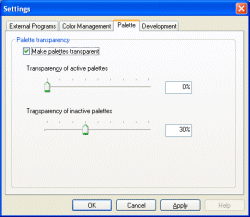
Transparency of
active palettesWhen multiple palettes are displayed, you can set the transparency of the active palette where the mouse pointer is located. Input the transparency (0% to 99%) in the text box or drag the slider to adjust the transparency. Transparency of
inactive palettesWhen multiple palettes are displayed, you can set the transparency of inactive palettes where the mouse pointer is not located. Input the transparency (0% to 99%) in the text box or drag the slider to adjust the transparency. - Click [OK] when the settings are completed.
|
Copyright 2007 Sony Corporation
|
A0003-01-US
|