Adjusting a Still Image

Saving and loading the image processing settings
You can save the image processing settings for adjustments done in
the palettes. The saved settings can be applied to other image files
and used in batch processing.
 To
paste image processing settings to another image
To
paste image processing settings to another image
You can apply the image processing settings to another image without saving
the setting file.Display the image with the image processing settings you want to use with another image in the document window. On the window, select [Copy Image Processing Settings] from the [Edit] menu. Then open the image to which you want to apply the settings in the document window and select [Paste Image Processing Settings]. The same image processing settings are applied.
Saving the image processing settings
- Display the image with the image processing settings you want to use with another image in the document window.
- Click [Save Image Processing
Settings] from the [Edit] menu.
The dialog box used to save the image processing settings is displayed.
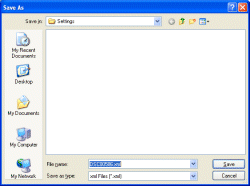
- Input a name for the settings in
the [File name] text box and then click [Save].
The image processing settings file is saved in the [Settings] folder with the specified file name. To change the destination folder, select the desired folder from the [Save in] drop-down list box.
Loading the image processing settings
- Display the image to which you want to apply image processing settings in the document window.
- Click [Load Processing Settings
and Apply] from the [Edit] menu.
The dialog box used to select the image processing settings is displayed. In the list box, the names of the existing image processing settings are displayed.
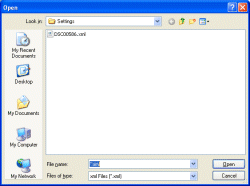
- Select the desired image processing
settings file and then click [Open].
The specified image processing settings are loaded and the still image is adjusted according to the settings.
|
Copyright 2007 Sony Corporation
|
A0005-01-US
|