Printing a still image

Changing the print settings
You can change print settings when you display an image in the document
window.
For details on basic printing operations, refer to the “Image
Data Converter SR Guide” supplied with the software (“Image
Data Converter SR Guide”).
- Display the image that you
want to print in the document window.
- Click [Print] from the [File]
menu.
The [Print] dialog box is displayed.
- While referring to the previewed
image, make the print settings.
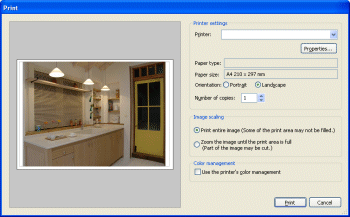
Printer settings
(For Windows)Set the printer and paper type. - Printer: Select the printer to be used to print the still image. To make detailed settings, click [Properties] to display the [Properties] dialog box. For details, see the operating instructions of the printer you are using.
- Paper type: The paper type currently used in the printer is displayed. To use a different paper type, click [Properties] to display the [Properties] dialog box.
- Paper size: The paper size currently used in the printer is displayed. To use a different paper size, click [Properties] to display the [Properties] dialog box.
- Orientation: Check either [Portrait] or [Landscape], depending on the image orientation.
- Number of copies: Specify the number of copies to be printed.
Printer settings
(For Macintosh)Set the printer and paper type. - Paper size: The paper size currently used in the printer is displayed.
- Orientation: Check either [Portrait] or [Landscape], depending on the image orientation.
- Page Setup: Click this button to display the dialog window where you can specify the print paper size or other print settings.
Image scaling Select either of the following while referring to the previewed image. - Print entire image (Some of the print area may not be filled.)
- Zoom the image until the print area is full (Part of the image may be cut.)
Color management Select this option when you want to use the printer's color management features. With this option checked, you can select a desired ICC profile from the drop-down list box.
Even if you select this option, color management cannot be used when the printer itself is set up so as not to use color management. - Click [Print] when the settings are completed.
For Windows: Printing starts.
For Macintosh: The standard [Print] dialog box is displayed. When you click [Print] on the dialog box, printing starts.
|
Copyright 2007 Sony Corporation
|
A0007-01-US
|