
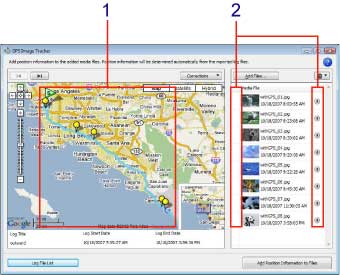


- When you click each image displayed in the image file list, the display area of a map will move to a location corresponding to the image. An image with
 icon displayed does not have a corresponding GPS log, and therefore the map will not move even if you click the image file list.
 - The
 icon will be displayed on the map when you click the
  icon in the image file list.
 - If a GPS log file corresponding to the position information of an image has not been imported yet when you add an image, the save GPS log file confirmation window will appear.
Click [Import Now] or click [Import] on the log file list to import the GPS log file.
For more information about the procedure for importing GPS log files, refer to the Help file (GPS Image Tracker Manual).
Note
- When there is a difference of more than 12 hours between the time of an imported GPS log recording and that of an image recording, the image is not saved with its position information.
- When an image does not have a corresponding GPS log file, the image is not removed from the image file list even if you execute “Add Position Information to Files.” If the image remains displayed in the image file list, remove the image from the image file list before exiting “GPS Image Tracker.”
- When there is no corresponding GPS log file, you can manually add position information to the image using the “Map View” function of “Picture Motion Browser.” For more information about the “Map View” function, refer to the “PMB Guide.”