Adjusting position information

Adjusting position information
You can change the position where you recorded images, saved with the position information displayed on the map.
Follow the steps below to adjust positions.
Changing positions using the pin icons on the map
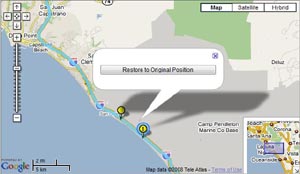
When you drag-and-drop a pin icon displayed on the map, you can change the position where you recorded the image to the position the pin icon is dropped.
To return the recording position you changed to the original position, click the pin icon displayed on the map again and select [Restore to Original Position]. The pin icon will return to original position.
To return the recording position you changed to the original position, click the pin icon displayed on the map again and select [Restore to Original Position]. The pin icon will return to original position.
Tip
The [Restore to Original Position] button will appear only for an image with the ( ) icon, which appears after you change the position of the pin icon using drag-and-drop.
) icon, which appears after you change the position of the pin icon using drag-and-drop.Changing positions using [Location Correction]
If the built-in clock of a camera you use for recording images is set different from the actual time, you can use [Location Correction] to adjust the position information of all images in the image file list.
Click [Corrections] on the main window and select [Location Correction] to display the Location Correction window. Move the slider to adjust the position.
Click [Corrections] on the main window and select [Location Correction] to display the Location Correction window. Move the slider to adjust the position.

Note
You cannot use [Location Correction] to change the position information of the images () which you changed the pin icon position using drag-and-drop.
) which you changed the pin icon position using drag-and-drop.Tip
- The adjustment range is 5 minutes before and after the time of image recording.
- When you execute [Location Correction], the recording date/time of the images in the image file list will be displayed in red.
- When you execute [Location Correction], the position information of all images in the image file list will be adjusted. Before executing this function, remove images that do not require position information adjustment from the image file list.
Changing the time difference of GPS log
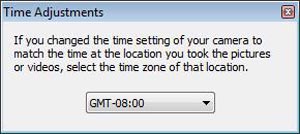
Click [Corrections] on the main window and select [Time Adjustments] to display the Time Adjustments window. Select the desired time difference setting from the displayed drop-down list on the Time Adjustments window.
Tip
- If you took pictures after you changed the time setting of your camera to match the time in a different time zone, you can use Time Adjustments to correct the time difference of the corresponding log file.
- You cannot use the [Corrections] menu to adjust the time difference of a GPS log corresponding to an image that has not been imported to the software. You have to either import the image corresponding to the GPS log or double-click the GPS log from [Log File List] and then adjust the time difference using the edit window of the log file.
Copyright 2008 Sony Corporation